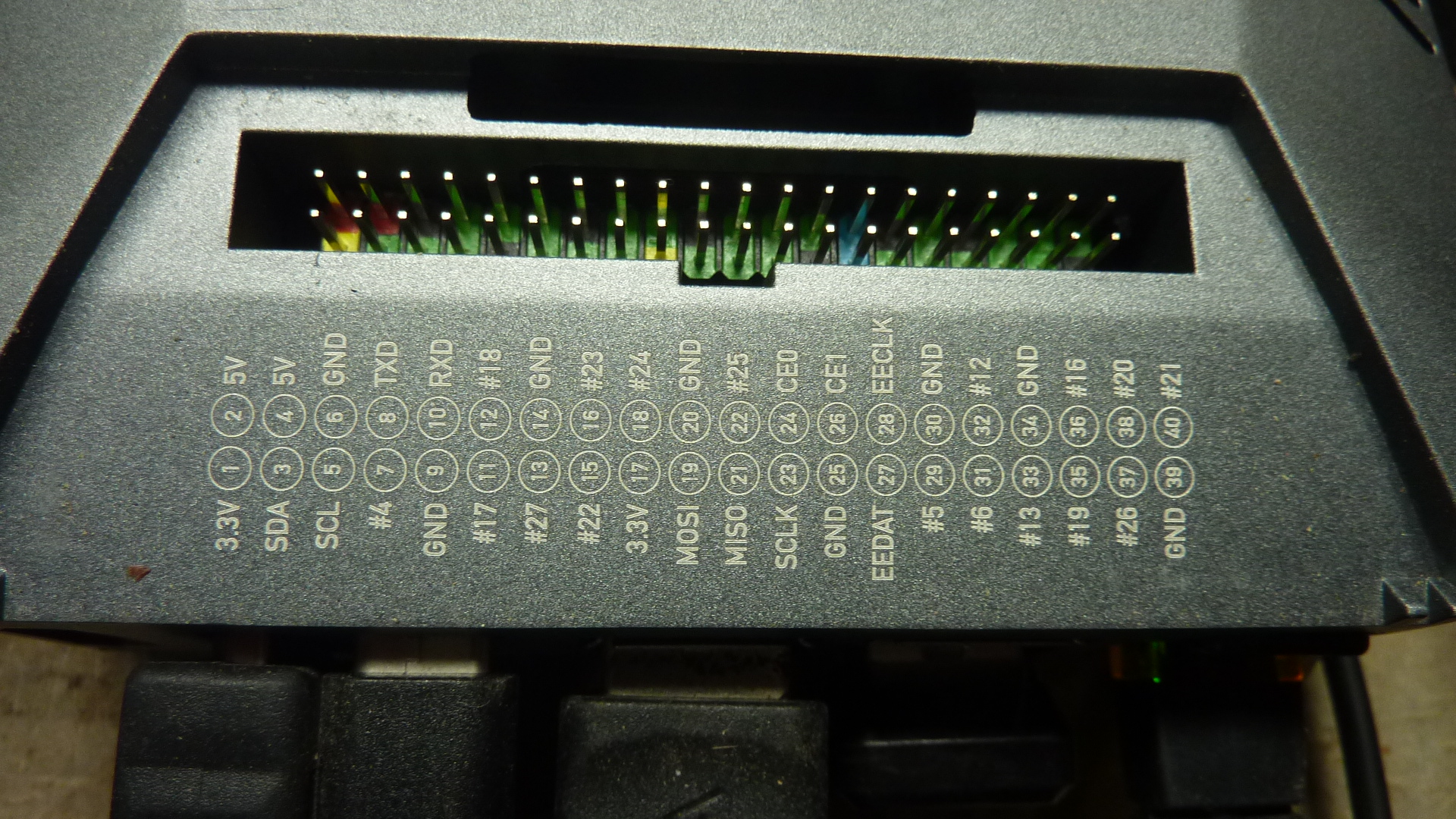
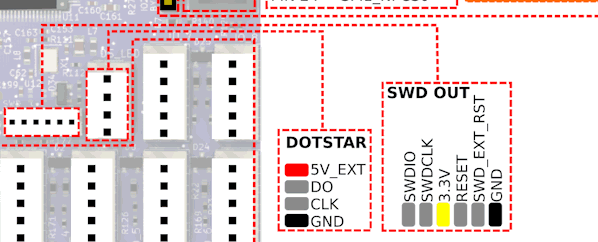
update: This is the process i went through to try to get my duet3 6hc to take a firmware update. My initial attempt left me with a board that was stuck with the small red leds dimly light. This means the board is ready to accept firmware but i could not get it to cooperate. I went as far as direct communication with the amtel and still came up empty, so after sleeping on it I tried a fresh start
1. used a small usb cable made for communication
2 downloaded a duet3 version of Bossa ( https://github.com/Duet3D/BOSSA/releases/tag/1.9.1a-duet3d)
3 downloaded the prevous stable version of duet3 6hc bin
4 placed the reset pin holding the reset button, removing pin then button
5 selected port and file in bossa, wrote the .bin and YES!
How to Recover a Duet 3 6HC Stuck in BOSSA Mode Using a Raspberry Pi
If your Duet 3 6HC is stuck in BOSSA mode and does not recover after flashing the firmware, this guide will help you reflash the bootloader using a Raspberry Pi as an SWD programmer.
🔍 Why is My Duet 3 6HC Stuck in BOSSA Mode?
- If your Duet 3 6HC stays in BOSSA mode after flashing firmware, it means the bootloader is either missing or corrupted.
- You need to reinstall the bootloader using SWD (Serial Wire Debug) before uploading the main firmware.
🛠 Required Tools
✅ Raspberry Pi (any model with GPIO, e.g., Pi 3, Pi 4, Zero, etc.)
✅ Duet 3 6HC Board
✅ Jumper Wires (Female-to-Female)
✅ MicroSD Card (for firmware updates later)
✅ Duet3Bootloader-SAME5x.bin (Download from Duet3D GitHub)
1️⃣ Identify the SWD Header on Duet 3 6HC
To flash the bootloader, you must connect the Raspberry Pi's GPIO pins to the Duet 3 6HC SWD header.
📌 SWD Header Location on Duet 3 6HC:
- The SWD header is a small 5 or 6-pin unpopulated header near the Atmel SAME51 microcontroller.
- It is usually labeled SWD, JTAG, or DEBUG.

2️⃣ Wiring: Connect Raspberry Pi to Duet 3 6HC
🖥 Raspberry Pi GPIO Pins → SWD Pins on Duet 3 6HC
| Raspberry Pi Pin | Duet 3 6HC Pin | Function |
|---|---|---|
| Pin 2 (5V) or Pin 1 (3.3V) | 3.3V (VCC) | Power |
| Pin 6 (GND) | GND | Ground |
| Pin 22 (GPIO 25) | SWDIO | SWD Data |
| Pin 23 (GPIO 11) | SWCLK | SWD Clock |
| Pin 18 (GPIO 24) | RESET (Optional) | Reset |
⚠️ Important Notes:
- Only use 3.3V power (Pin 1) if unsure; using 5V may damage the microcontroller.
- Ensure correct wiring to avoid programming errors.
3️⃣ Install OpenOCD on Raspberry Pi
- Update the Raspberry Pi
sudo apt update && sudo apt upgrade -y - Install OpenOCD (SWD Debugging Tool)
sudo apt install openocd -y - Check if OpenOCD is installed
openocd --version- You should see a version number like
OpenOCD 0.10.0or newer.
- You should see a version number like
4️⃣ Configure OpenOCD for SWD Communication
- Create an OpenOCD configuration file
nano duet3.cfg - Add the following content to the file:
interface bcm2835gpio bcm2835gpio_peripheral_base 0x3F000000 bcm2835gpio_speed_coeffs 236181 60 transport select swd set WORKAREASIZE 0x4000 source [find target/atsame5x.cfg] bcm2835gpio_swd_nums 25 11 bcm2835gpio_srst_num 24 - Save and exit (
CTRL+X, thenY, thenEnter).
5️⃣ Start OpenOCD and Flash Bootloader
- Start OpenOCD
sudo openocd -f duet3.cfgIf everything is working, you should see output like:
target halted - Open another terminal window and run:
telnet localhost 4444 - Erase the chip
reset halt at91samd chip-erase - Flash the Duet 3 6HC Bootloader
flash write_image erase Duet3Bootloader-SAME5x.bin 0x00000000 verify_image Duet3Bootloader-SAME5x.bin 0x00000000 reset run - Power-cycle the Duet 3 6HC by disconnecting and reconnecting power.
6️⃣ Flash the Main Firmware
Now that the bootloader is installed, you need to upload the main firmware.
- Download Duet3Firmware_MB6HC.bin from Duet3D GitHub.
- Flash it using BOSSA:
bossac --port=usb -e -w -v -b Duet3Firmware_MB6HC.bin -R - Restart the board and it should now boot normally!
🎯 Expected Outcome
✅ Bootloader installed
✅ Duet 3 6HC no longer stuck in BOSSA mode
✅ Now ready to use RepRap Firmware
If you encounter any issues, double-check:
- Wiring connections
- That OpenOCD is running correctly
- That you are using the correct bootloader file
Need help? Comment below! 🚀
Troubleshooting SWD Debugging with OpenOCD on Raspberry Pi
Issue: OpenOCD Fails to Detect Target Chip
When attempting to use OpenOCD with SWD debugging on a Raspberry Pi, you might encounter the following output:
Open On-Chip Debugger 0.12.0
Licensed under GNU GPL v2
For bug reports, read  http://openocd.org/doc/doxygen/bugs.html
DEPRECATED! use 'adapter driver' not 'interface'
...
Info : SWD DPIDR 0x00000000
The critical issue here is SWD DPIDR 0x00000000, which indicates that OpenOCD is not detecting the target chip.
Troubleshooting Steps
1. Check Physical Connections
- Ensure SWDIO, SWCLK, GND, and VCC are correctly connected.
- If using an external debugger (e.g., ST-Link, J-Link), verify the wiring.
- Try swapping SWDIO and SWCLK.
- Ensure the target is powered and running.
- Use 10kΩ pull-up on SWDIO and 10kΩ pull-down on SWCLK, if necessary.
2. Verify SWD Pins on Raspberry Pi
Check GPIO pin states with:
raspi-gpio get
Ensure SWDIO and SWCLK are not in use by another peripheral.
3. Check If the Target Is Locked
If debugging an STM32 or another Cortex-M chip, try unlocking it:
openocd -f interface/raspberrypi-native.cfg -f target/stm32f4x.cfg -c "init" -c "reset halt" -c "stm32f4x unlock 0" -c "shutdown"
4. Enable Debug Logging in OpenOCD
Run OpenOCD with verbose debugging:
openocd -d3 -f <your-config-file>
5. Try PyOCD as an Alternative
For Cortex-M chips, PyOCD can be used:
pip3 install --upgrade pyocd
pyocd list
Conclusion
If OpenOCD reports SWD DPIDR 0x00000000, SWD communication is failing. By verifying physical connections, checking pin states, reducing clock speed, unlocking the target, and using debug logs, you can troubleshoot the issue. If OpenOCD fails, PyOCD is another great option.
Need help? Leave a comment with your setup details!